
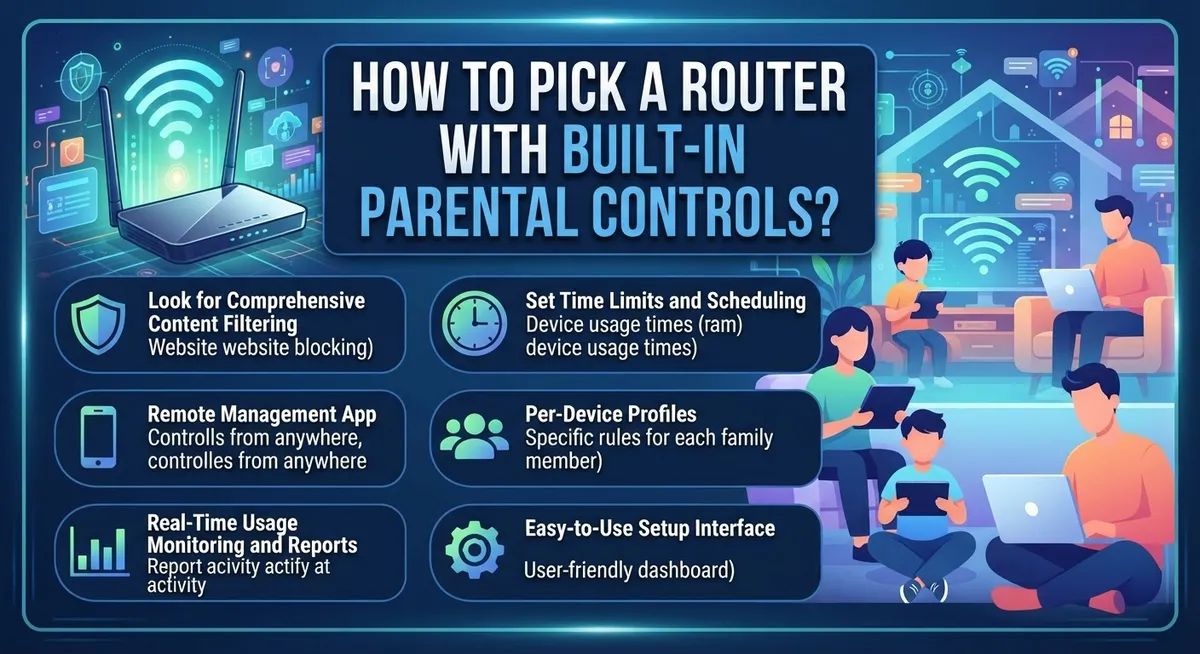
How to Pick a Router With Built-In Parental Controls?
Kids today spend hours online. They study, play, and chat with friends through the internet.
This makes your home router more important than ever. It acts as the first line of defense for your family.
A router with built-in parental controls helps you manage what your kids see. You can block harmful content and set healthy limits.
But here’s the tricky part. Not all routers offer the same level of protection.
Some models give you detailed control over apps and websites. Others only offer basic filtering that misses a lot.
Picking the wrong router can leave gaps in your child’s online safety. Picking the right one gives you real peace of mind.
This guide will help you understand what to look for. We will cover key features like content filtering and time scheduling.
You will also learn about common setup mistakes parents make. We will explore how to match a router’s capabilities to your family’s needs.
By the end, you will know exactly how to choose a router that keeps your kids safe. Let’s get started on finding the best fit for your home.
In a Nutshell
Here’s a quick summary to help you choose the right router fast.
-
Not every router offers parental controls. You need to check specs before you buy, since features vary a lot between brands and models.
-
Setup usually follows a simple pattern. You access router settings, create a child profile, add their devices, and pick age-appropriate presets.
-
Scheduling matters most for busy families. Most modern routers let you set internet shutoff times, so screens turn off automatically at bedtime.
-
Some brands filter better than others. Options like Gryphon offer deep control, while brands like Google or ASUS block adult content but may miss some mature material.
-
Ease of use is a real trade off. Stronger filtering often means more setup steps, so pick based on your comfort level with tech.
-
Router controls alone aren’t foolproof. Smart kids can find workarounds, so pair your router settings with open conversations about online safety.
-
App reliability varies too. Some companion apps work great, while others (like certain Nighthawk models) can be inconsistent.
What Are Router Parental Controls and How Do They Work?
Router parental controls are features built into your home network device that let you manage what content your children can access online. Think of them as a gatekeeper for your internet connection.
Here’s how they work in practice. Your router acts as the central hub for all devices in your home. When you enable parental controls, you tell the router to filter or block certain websites and apps before they reach your child’s device. The router doesn’t need to install anything on each device. Instead, it handles the filtering at the network level.
The process starts when you log into your router’s admin panel. You create a separate profile for each child. Then you assign their devices (tablets, phones, laptops) to that profile. Once linked, the router applies your chosen restrictions to only those devices.
Content filtering is the main job parental controls do. You can block adult websites, gambling sites, or any category you choose. Many routers come with preset filters for different age groups. A profile for a 10 year old might block more content than one for a 16 year old.
Scheduling is another powerful feature. You can set times when internet access turns completely off. For example, you might shut down internet from 9 PM to 7 AM on school nights. Kids cannot bypass this since the restriction happens at the router level, not on their device.
Important to know: router controls have limits. Tech savvy children can sometimes work around them using VPNs or other methods. Parental controls work best as one part of a bigger approach to online safety. They pair well with open conversations about internet use and monitoring what your kids actually do online.
Key Features to Look for in a Parental Control Router
When you shop for a router with parental controls, focus on these core features that actually work.
Content filtering strength matters most. Check if the router blocks adult websites, violent content, and gambling sites automatically. Some routers use basic keyword blocking, while others use AI to recognize harmful pages. Stronger filtering catches more dangerous content, but it sometimes blocks legitimate sites too. Read reviews to see if other parents found the filtering effective.
Age specific presets save you time. Many routers let you select your child’s age, and the system applies recommended restrictions automatically. A preset for a 10 year old blocks different content than one for a 15 year old. This feature is helpful if you have multiple children with different needs.
Device management is essential. You need to see which devices connect to your network and assign them to specific profiles. The router should let you add phones, tablets, and computers to a child’s account easily. Without this, kids can simply use a different device to bypass controls.
Scheduling capabilities help enforce screen time limits. Look for routers that let you set exact times when internet access turns on and off. Some routers offer different schedules for weekdays and weekends. This feature works best when you can control it from your phone while away from home.
App based controls make management simpler. A good router app lets you monitor activity, adjust settings, and pause internet without touching the physical device. Check if the app works smoothly on your phone and updates reliably.
Real time monitoring shows what your kids actually access. Some routers display websites visited and apps used. This transparency helps you have informed conversations with your children about their online habits.
Test the admin dashboard before buying if possible. A confusing interface will frustrate you during setup and daily use.
Step-by-Step: Setting Up Parental Controls on Your Router
Start by logging into your router’s admin panel. You will need the router’s IP address, username, and password. Most routers use 192.168.1.1 or 192.168.0.1 as the default address. Check your router’s manual or the sticker on the device if you forgot these details.
Once you’re logged in, look for the parental controls section. Different brands place this in different spots, so search for terms like “Parental Controls,” “Family Safety,” or “Content Filtering.” Some routers group these settings under “Advanced” or “Security.”
Create a child profile first. You will name the profile and set an age range or maturity level. This step matters because it helps the router apply the right content filters automatically. Most modern routers offer presets like “Young Child,” “Teen,” or “Mature Teen” to make this easier.
Next, add your child’s devices to this profile. You can do this by selecting their specific device (like a tablet or laptop) or by entering the device’s MAC address. The router will then apply your chosen restrictions only to that device.
Set up scheduling if your family needs screen time limits. You can usually specify when the internet turns on and off for that device. For example, you might block internet access after 9 PM on school nights or all day Sunday morning.
Test the settings before finalizing them. Have your child try accessing a blocked site to confirm the filter works. Also check that allowed content still loads properly.
Save your configuration. Most routers ask you to confirm changes before they take effect. Write down your new admin password in a secure place so you don’t lose access later.
Creating Age-Appropriate Profiles and Content Filters
Creating age-appropriate profiles starts with understanding what your router actually offers. Most modern routers let you build separate profiles for each child based on their age or maturity level.
Start by accessing your router’s admin panel. You’ll need to log in with your administrator password. Look for a section labeled “Parental Controls,” “Family Settings,” or “Content Filtering.” The exact name varies by brand, but it’s usually easy to find in the main menu.
Once you’re inside, create a new child profile. Give it your child’s name and select their age range. Many routers provide preset options like “Ages 5-8,” “Ages 9-12,” or “Teens 13+.” These presets automatically block content that doesn’t match that age group. This saves you time from manually setting every single restriction.
Add your child’s devices to their profile. You can usually do this by selecting their tablet, phone, or computer from a list of connected devices. Some routers let you assign multiple devices to one profile, which is helpful if your child uses several gadgets.
Content filters work by blocking websites in certain categories. Most routers let you choose which categories to block: adult content, gambling, violence, social media, or streaming services. You can customize these choices for each profile. A 7-year-old might have stricter filters than a 15-year-old.
Test your settings before finalizing them. Have your child try accessing a few websites to make sure the filters work as intended. Some sites might slip through, or you might block something you didn’t mean to. Adjusting now is easier than dealing with frustrated kids later.
Save your configuration when everything looks right. Most routers ask you to confirm changes before they apply to your network.
Scheduling Internet Access and Managing Device Time Limits
Most modern routers let you schedule when internet access turns on and off. This feature helps you control when your kids can use devices without manually unplugging anything.
Setting up time limits works in three basic steps. First, log into your router’s admin panel using your administrator password. Second, find the scheduling section within parental controls. Third, select your child’s profile and set specific times when internet access is allowed or blocked.
You can typically schedule internet shutoff for school nights, early mornings, or family dinner times. Many routers let you set different schedules for different days of the week. For example, you might allow internet access until 9 PM on weekdays but 11 PM on weekends.
Device time limits function differently than full internet shutoff. Some routers let you set maximum daily usage hours for each device. If your child has 2 hours of internet time daily, the router cuts access once they reach that limit. The device reconnects the next day when the timer resets.
The admin app or dashboard shows you exactly when restrictions are active. You can adjust schedules instantly if plans change. Most routers send notifications when access is blocked or when time limits are reached.
Important note: scheduling features vary by router model. Some offer hourly precision while others work in 30 minute blocks. Check if the router supports recurring schedules (repeating the same limits every day) or one time schedules (specific dates only).
Test your schedule before relying on it completely. Have your child try connecting during blocked times to confirm the shutoff works. This prevents frustration and shows you exactly how the feature behaves in real life situations.
Common Mistakes to Avoid When Relying on Router Controls
Many parents make critical mistakes when they depend too heavily on router parental controls alone. Tech-savvy children often find ways around these restrictions. They may use VPNs, change device settings, or access content through different networks. Router controls work best as one layer of protection, not your only defense.
Another common error is choosing a router with unreliable parental control software. Some models have inconsistent app performance or confusing interfaces. Before purchasing, check user reviews specifically about the parental controls feature. Read what other parents say about how well the blocking actually works in real situations.
Inadequate content filtering causes problems too. Some routers allow excessive mature material to slip through their filters. They may block obvious adult sites but miss others. You need to understand what each router actually filters before you buy it.
Parents sometimes set up controls and then forget to monitor them. Children change their online habits constantly. What worked last month might not work today. Check your router’s activity logs regularly to see what sites your child visits.
Scheduling features can fail silently. A parent might set internet shutoff times but never verify the restrictions actually activated. Test your scheduling by checking if devices lose connection at the planned times.
Another mistake involves not adjusting settings as your child grows. Age-appropriate profiles need updates. A filter suitable for a 10-year-old won’t work for a teenager. Review and adjust your settings every few months.
Finally, parents overlook the importance of open communication. Parental controls work best alongside honest conversations about internet safety. Explain to your child why certain restrictions exist. This builds trust and teaches responsible online behavior.
Troubleshooting Parental Control Issues
When parental controls don’t work as expected, you need a clear action plan. Start by checking if restrictions are actually enabled. Log into your router’s admin panel and verify that the child profile has active filters. Sometimes controls appear set up but aren’t actually running.
Test connectivity first. Have your child try accessing a blocked website from their device. If the site loads when it shouldn’t, the filter isn’t working. If it blocks correctly, the issue might be elsewhere. This simple test saves you hours of troubleshooting.
Check your router’s app or dashboard for error messages. Many routers display alerts when filters fail or when the software needs updating. Update your router’s firmware immediately if an update is available. Outdated software causes most parental control failures. The update process typically takes 10 to 15 minutes and happens through your admin panel.
Verify that your child’s device is actually assigned to their profile. Devices sometimes get removed or reassigned accidentally. Go back to your device management settings and confirm the correct profile is linked to each tablet, phone, or computer.
Restart your router completely. Unplug the power cable, wait 30 seconds, and plug it back in. This resets the system and often fixes temporary glitches with filters or scheduling.
If problems persist, check whether your child is using a different network. Some kids connect to a neighbor’s WiFi or use mobile data to bypass restrictions. Discuss this possibility with them openly.
Clear your browser cache. Sometimes cached pages bypass filters temporarily. Clearing cookies and cache from your child’s device can resolve false negatives where blocked content appears to load.
Finally, contact your router manufacturer’s support team. Provide them with specific details about which filters fail and when. They can identify whether the issue is a known bug or a configuration problem specific to your setup.
Final Thoughts
Picking a router with built in parental controls comes down to your family’s needs. Think about how much control you actually want.
Some parents need strict content filtering. Others just want simple screen time limits. Know your priorities before you shop.
Look for routers that offer age based presets. These make setup faster and easier for busy parents.
Check if the router lets you create separate profiles for each child. This feature helps you customize rules for different ages.
Scheduling options matter too. Make sure the router supports internet shutoff times that fit your family’s routine.
Remember that no router is perfect on its own. Parental controls work best when paired with open conversation.
Talk to your kids about online safety regularly. Explain why certain rules exist instead of just enforcing them silently.
Test the router’s controls after setup. Try accessing blocked sites yourself to confirm the filters work correctly.
Review your settings every few months. Children grow fast, and their online needs change just as quickly.
Watch for signs of technical glitches. Scheduling features sometimes fail without warning, so stay alert.
Don’t ignore software updates either. Manufacturers often improve parental control features through firmware updates.
If your current router lacks strong controls, consider upgrading. A reliable router saves you stress in the long run.
Compare a few models before deciding. Look at ease of setup, filtering strength, and customer support quality.
Ask other parents about their experiences too. Real world feedback often reveals issues that specs sheets miss.
In the end, the best router fits your family’s daily life. It should feel simple to manage, not stressful.
Balance technology with trust. Parental controls give you a helpful tool, not a complete solution.
Combine smart settings with honest talks. That mix keeps your children safer both online and off.
Frequently Asked Questions
Do all routers have built in parental controls?
No, not all routers include parental controls. Basic routers often lack this feature entirely. You need to check the router’s specifications before buying. Look for models that specifically mention parental control capabilities in their product descriptions.
How do I set up a child profile on my router?
Start by accessing your router’s admin settings through the app or web dashboard. Most routers let you create a new user profile from the main menu. You’ll typically select an age group or custom settings. Then assign specific devices to that profile. The router will apply your chosen restrictions to those devices automatically.
Can I schedule when my child’s internet turns on and off?
Yes, most modern routers support time based scheduling. You can set specific hours when internet access is available or blocked. For example, you might disable internet access during school hours or after bedtime. Check your router’s app to see if this feature exists. Not all models offer the same scheduling flexibility, so verify this before purchasing.
What happens if my tech savvy child tries to bypass the controls?
Router parental controls alone aren’t foolproof. Older kids may find ways around restrictions using VPNs or other methods. This is why open communication matters more than technology alone. Combine router controls with honest conversations about online safety. Monitor your child’s activity regularly. Consider additional safeguards on their devices as backup protection.
Which routers have the most reliable parental control systems?
Different routers excel in different areas. Some prioritize strong content filtering. Others focus on ease of use. Your choice depends on whether you need strict controls or simpler management. Research specific models and read user reviews about their parental control performance before deciding.

DK is a tech enthusiast and product reviewer dedicated to helping readers navigate the ever-evolving world of technology. With a passion for testing and comparing the latest gadgets, software, and AI tools, DK breaks down complex tech into simple, actionable insights for everyday users.


