
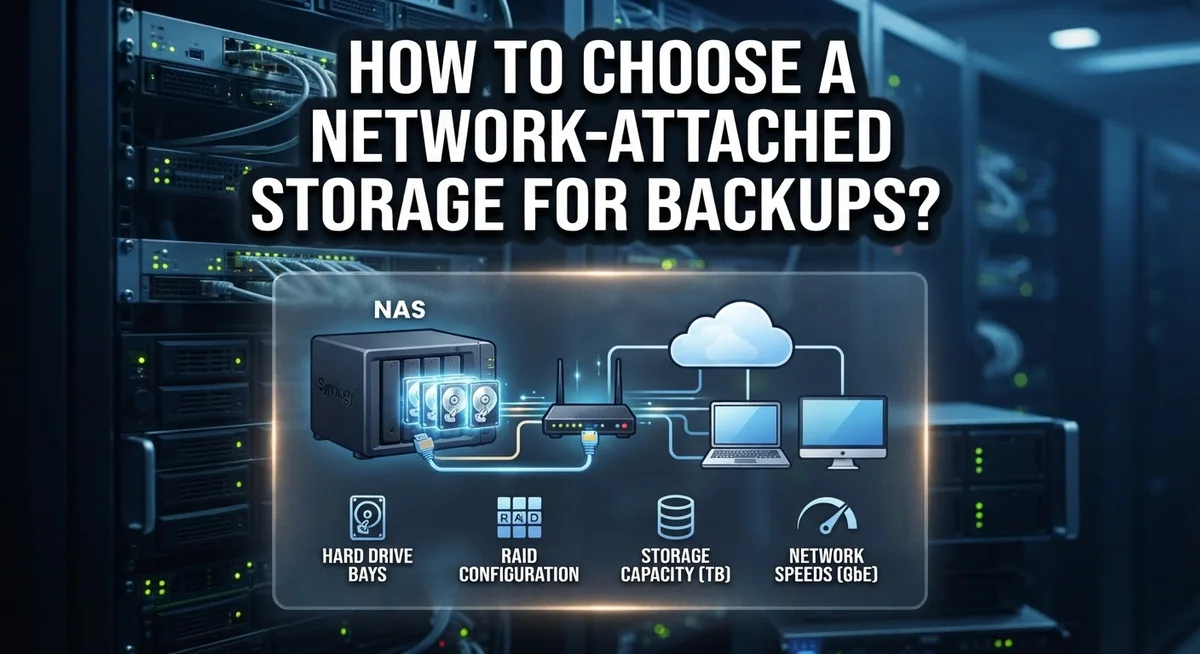
How to Choose a Network-Attached Storage for Backups?
Losing important files feels awful. That is why so many people turn to network attached storage for backups.
A NAS device acts like a personal cloud. It sits on your network and stores data from all your devices in one place.
You can back up photos, documents, and videos automatically. No more scrambling to save files one by one.
The best part? You can access your data from anywhere. Whether you are home or traveling, your files stay within reach.
But here is something many people miss. A NAS is not a complete backup solution by itself. It needs its own protection plan too.
This guide will help you choose the right NAS for your backup needs. We will cover how to figure out the storage space you need.
You will learn about the key components that matter most. We will also show you how to match features to your specific situation.
By the end, you will know how to set up centralized storage the smart way. You will also understand common mistakes to avoid.
Let’s get started on building a backup system you can actually trust.
In a Nutshell
Here’s a quick summary to keep in mind:
-
Check your storage needs first. Think about how many files you have now. Then plan for future growth too.
-
Look at the main components. Things like processing power, RAM, and drive bays matter. These affect how well your NAS performs.
-
Match features to your goals. Remote access lets you reach files from anywhere. Automatic backup features save you time and stress.
-
Remember, a NAS is not a full backup by itself. It stores data centrally, but it needs its own protection plan too.
-
Set up a separate backup for your NAS data. This keeps your files safe even if the device fails.
-
Configure everything for centralized storage. This makes managing and finding your files much simpler.
Choosing the right NAS takes a little planning. But once it’s set up, you get peace of mind and easy access to everything you need. Focus on capacity, key features, and a solid backup plan for the NAS itself. That combination gives you a system you can truly rely on.
What Is NAS and How Does It Work?
A Network-Attached Storage device is a dedicated machine that connects to your home or office network. It sits on your shelf or rack and stores files that multiple people can access at the same time. Think of it as a shared storage hub rather than a traditional external hard drive.
How NAS works is straightforward. The device connects to your internet router using an ethernet cable or wireless connection. Once connected, every computer, tablet, and phone on your network can see and access the stored files. You organize your data into folders, set permission levels, and control who sees what.
The real power comes from centralized storage. Instead of keeping copies of files on five different computers, everyone accesses the same version from one place. This eliminates confusion about which file is the most recent. When someone updates a document, everyone sees that update immediately.
Remote access is another key feature. Many NAS systems let you log in from outside your home or office. You can grab important files while traveling or working elsewhere. This happens through secure connections that protect your data during transmission.
NAS devices include multiple hard drive slots. You can install two, four, or more drives depending on your model. The system can mirror your data across these drives automatically. If one drive fails, your files remain safe on the other drives.
Important to remember: NAS is not a backup solution by itself. It stores data centrally, but it still needs protection. If the entire NAS device fails or gets infected, you lose everything. That’s why you need a separate backup strategy. Back up your NAS data to another location, either offsite or on a different device.
This two layer approach keeps your information secure. Your NAS handles daily access and sharing, while your backup protects against worst case scenarios.
Assessing Your Storage Capacity Needs
Figuring out how much storage you actually need is the first real step. Start by counting the files you have right now. Include photos, videos, documents, and any other data you want to protect.
Think about your growth rate too. How much new data do you create each month? If you take lots of photos or work with large video files, this number matters a lot. Add up everything and then multiply by two or three. This gives you room to grow without running out of space soon.
Consider what types of files you backup most. Video files take up huge amounts of space. A single hour of video can use 5 to 25 gigabytes depending on quality. Photos typically use less, but thousands of them add up fast. Documents use minimal space but still count toward your total.
Think about how many people will use the system. A family of four needs more capacity than a single person. Each family member might have their own folders for photos, music, and work files. Everyone’s data adds up quickly.
Don’t forget about redundancy. Many NAS devices let you use multiple drives in a way that protects your data if one drive fails. This setup uses extra space but keeps your files safer. Plan for this protection when calculating your needs.
A good rule is to buy more capacity than you think you need right now. Storage needs grow over time. You might start backing up security camera footage or add new devices to your network. Having extra space prevents you from maxing out in a year or two.
Look at your budget alongside capacity needs. Larger devices cost more, but spreading costs over several years makes sense. Start with realistic numbers, then add 50 percent more space for future growth. This approach keeps your backup system useful for years to come.
Key NAS Components and Features to Evaluate
When you evaluate a NAS system, you need to examine several core components that directly affect performance and reliability. Processor power matters because it determines how fast your device handles file transfers and backup operations. A stronger CPU processes data more quickly, which saves you time during large backups.
RAM is equally important. More memory allows your NAS to manage multiple users and tasks simultaneously without slowing down. Most systems need at least 2GB to 4GB for basic use, but larger installations benefit from 8GB or more.
Drive bays are the slots where you install hard drives. The number of bays you choose affects your storage capacity and redundancy options. A device with four bays gives you more flexibility than a two bay model, especially if you want data protection through drive mirroring.
Connection speed matters too. Gigabit ethernet is standard for most modern systems, but some advanced models offer faster connections. Faster connections mean quicker backups and file access across your network.
Look at the cooling system and power consumption. Devices that run 24/7 generate heat, so proper ventilation prevents hardware failure. Energy efficient models cost less to operate over time.
Check the supported drive types. Most systems accept standard hard drives, but some work better with specific models or sizes. Compatibility affects your upgrade options later.
Review the backup software included or supported. Your NAS should work with common backup applications that automate the process. Built in backup scheduling features save you from manual work.
Finally, examine network connectivity options. Ethernet is essential, but some devices also offer wireless capability for flexibility. USB ports let you connect external drives for additional backup options.
These components work together to create a functional system. Understanding each piece helps you pick a NAS that actually meets your specific needs without overpaying for features you won’t use.
Matching NAS Features to Your Backup Requirements
Your backup needs are unique. A family storing photos and documents needs different features than a business handling video files and client data. Start by asking yourself what you actually back up each week.
Identify your file types first. Large video files demand faster processors and more RAM than text documents do. Media production requires different speed specs than email archives. Write down the file sizes you handle regularly.
Calculate your total backup volume. Add up everything you need to protect. Then multiply by two or three. This gives you real breathing room for growth and system overhead. Most people underestimate their needs by half.
Consider how often you backup. Daily backups need faster processors than weekly ones. Hourly backups demand even more processing power. Your NAS must handle the workload without slowing down your network.
Think about simultaneous users. One person backing up occasionally needs less power than five people accessing files at once. RAM becomes critical when multiple users connect simultaneously. Check the specifications for concurrent user support.
Evaluate recovery speed requirements. Do you need files back in minutes or hours? Faster recovery needs better processors and more RAM. Some situations allow slower restoration times, which means you can choose less powerful hardware.
Plan for future growth. Your needs will expand. A system that fits perfectly today might feel cramped in two years. Choose a NAS with room to add more drives or upgrade components later.
Match redundancy to your data value. Critical business files need multiple drive copies. Personal photos might need less protection. Your redundancy choice affects how many drive bays you actually need for usable storage.
Check processor power carefully. Encryption, automatic scheduling, and remote access all demand CPU resources. Underpowered processors slow everything down. Review the processor specs against your specific backup tasks.
Your requirements guide every other decision you make about NAS selection.
Setting Up Remote Access and Centralized Storage
Remote access transforms how you interact with your backup storage. You can retrieve files from your office, home, or while traveling without physical access to the device. This flexibility matters when you need data quickly from different locations.
Setting up remote access requires proper configuration. Most network storage systems include built in remote access features. You enable these through the system’s control panel or management software. The process typically involves creating user accounts and setting permission levels for each person.
Security becomes critical when you allow remote connections. Use strong passwords for all accounts. Enable encryption for data traveling over the internet. Two factor authentication adds another protection layer. These steps prevent unauthorized people from accessing your backups.
Centralized storage means all your data lives in one organized location. Everyone on your network accesses the same files instead of keeping separate copies. This approach eliminates confusion about which version is current. It also reduces storage waste across multiple computers.
Organizing your backup structure takes planning. Create folders that match your workflow. Use clear naming conventions so anyone can find what they need. Separate different types of data into logical sections.
Automatic backup schedules work best with centralized storage. You can set the system to back up specific folders at certain times. Night time backups often work well since computers sit idle. Incremental backups save time by only copying changed files.
Access speed depends on your internet connection. Faster speeds mean quicker file transfers. Upload and download speeds both matter. Some people prioritize upload speed for sending large backups. Others focus on download speed for retrieving files.
Test your remote access before you need it urgently. Verify that you can connect from different networks. Check that file permissions work correctly. Confirm recovery times meet your expectations. This practice prevents surprises when actual emergencies happen.
Configuring Automatic Backup Functionality
Automatic backup functionality saves you time and protects your data without manual effort. You set it once, and your system handles the rest consistently.
Start by choosing your backup schedule. Daily backups work best for frequently changing files. Weekly backups suit stable data that doesn’t change often. Consider how much data changes between backups. Frequent changes mean you need more frequent backups.
Next, select which folders to include in automatic backups. Most network storage systems let you choose specific directories. Include documents, photos, and work files. Exclude temporary files and cache folders. This reduces backup size and speeds up the process.
Set your backup window timing carefully. Run backups during off hours when network traffic is low. Early morning or late evening works well for most offices. Avoid peak work hours when people actively use the network. Your backup process won’t slow down other activities.
Configure retention policies for your backups. Decide how many backup copies you want to keep. Older backups can be deleted automatically after a set time. This prevents your storage from filling up completely. Balance between having multiple restore points and available space.
Enable notifications and monitoring features. Your system should alert you when backups complete successfully. You also need warnings if backups fail. Check logs regularly to confirm everything runs smoothly.
Test your automatic backups regularly. Restore a file monthly to verify backups actually work. A backup that fails silently is worse than no backup. Confirm that your restored files are complete and uncorrupted.
Remember that network storage itself needs protection. Automatic backups to your network storage device are excellent, but you need a separate backup strategy for that device too. Consider backing up your network storage to an external location or cloud service. This creates a complete backup chain that protects all your important data.
Common Mistakes to Avoid When Choosing a NAS for Backups
Choosing a network storage system for backups requires avoiding several critical mistakes that many people make. Understanding these pitfalls helps you select the right solution for your needs.
The biggest mistake is treating network storage as your primary backup solution. Network storage provides centralized access and organization, but it is not a backup by itself. If your network storage fails, you lose everything. You need a separate backup strategy that protects your data independently from your main storage system.
Many people skip creating a backup plan for the network storage itself. Your backup system needs protection too. Without a secondary backup of your network storage data, a hardware failure or data corruption event could be catastrophic. Always implement a backup solution specifically for your network storage contents.
Sizing capacity incorrectly is another common error. People often underestimate their storage needs and purchase systems that fill up quickly. Calculate your total backup volume honestly. Include all files you plan to protect, then add 30 percent for growth. This prevents expensive upgrades or the need to delete old backups prematurely.
Ignoring performance requirements causes frustration later. Different backup scenarios need different processing power. Daily backups of large video files require faster processors than weekly backups of documents. Consider your specific backup frequency and file types when evaluating system specifications.
Some people overlook remote access security when enabling off site connections. Remote access is convenient, but it opens security risks. Implement strong authentication, encryption, and access controls before enabling remote connections.
Finally, avoid purchasing without assessing your actual requirements first. Take time to determine sizing and feature needs before buying. Document how much data you backup, how often you backup, how many users need access, and whether you need remote capabilities. This planning prevents costly mistakes and ensures your network storage system truly matches your backup needs.
Final Thoughts
Choosing the right network attached storage takes careful thought. You need to assess your storage capacity before buying anything. Think about how much data you have now and how much you will create later.
Check the major components of any system you consider. Look at processing power, memory, and drive bays. These parts determine how well your NAS performs over time.
Match features to your specific needs. Not everyone needs the same setup. Some people need heavy remote access. Others need simple automatic backups for a small office.
Remember that NAS is not a full backup solution by itself. It stores and organizes your data well. But you still need a separate backup plan to protect that data.
Many people confuse NAS with a backup drive. A backup drive simply copies files. NAS does much more by organizing, sharing, and centralizing your data across a network.
Remote access remains one of the biggest benefits. You can reach your files from anywhere with proper setup. This makes NAS useful for teams and families spread across different locations.
Plan your automatic backup schedule early. Decide which folders matter most and how often they should back up. This planning saves you time and stress later.
Always protect the NAS itself with its own backup strategy. Hardware fails. Drives wear out. A copy of your NAS data elsewhere keeps you safe.
Take time to size your system correctly. Buying too small means you outgrow it fast. Buying too large wastes money you did not need to spend.
In the end, a good NAS choice comes down to understanding your needs clearly. Match capacity, features, and backup planning together. This combination gives you a reliable, organized, and secure storage system for years to come.
Frequently Asked Questions
What exactly is NAS and how does it work for backups?
NAS stands for network attached storage. It’s a device you connect to your network that stores files centrally. Everyone on your network can access it from their computers or phones. The key difference is that NAS sits on your network itself, not inside one computer. When you set up automatic backups, your files copy to the NAS regularly without you doing anything manual.
Do I really need NAS or would a regular backup drive work better?
That depends on your situation. A backup drive connects directly to one computer. NAS connects to your entire network. Choose NAS if multiple people need access to backups or if you want files available from different locations. Choose a regular backup drive if you only backup one computer and don’t need network access. Many people use both for extra protection.
Can I access my NAS backups from outside my home or office?
Yes, you can access NAS remotely with proper setup. Most NAS systems include remote access features. You can reach your files from anywhere with an internet connection. Make sure you enable security features like strong passwords and encryption when allowing outside access. Remote access is one of the biggest benefits of choosing NAS over simple external drives.
Is NAS the same as having a complete backup solution?
No. This is a critical point. NAS provides centralized storage, but it is not a full backup solution by itself. You still need a separate backup strategy to protect the NAS data. If your NAS fails or gets infected, your files could be lost. Always plan to back up your NAS to another location or device for complete protection.

DK is a tech enthusiast and product reviewer dedicated to helping readers navigate the ever-evolving world of technology. With a passion for testing and comparing the latest gadgets, software, and AI tools, DK breaks down complex tech into simple, actionable insights for everyday users.


