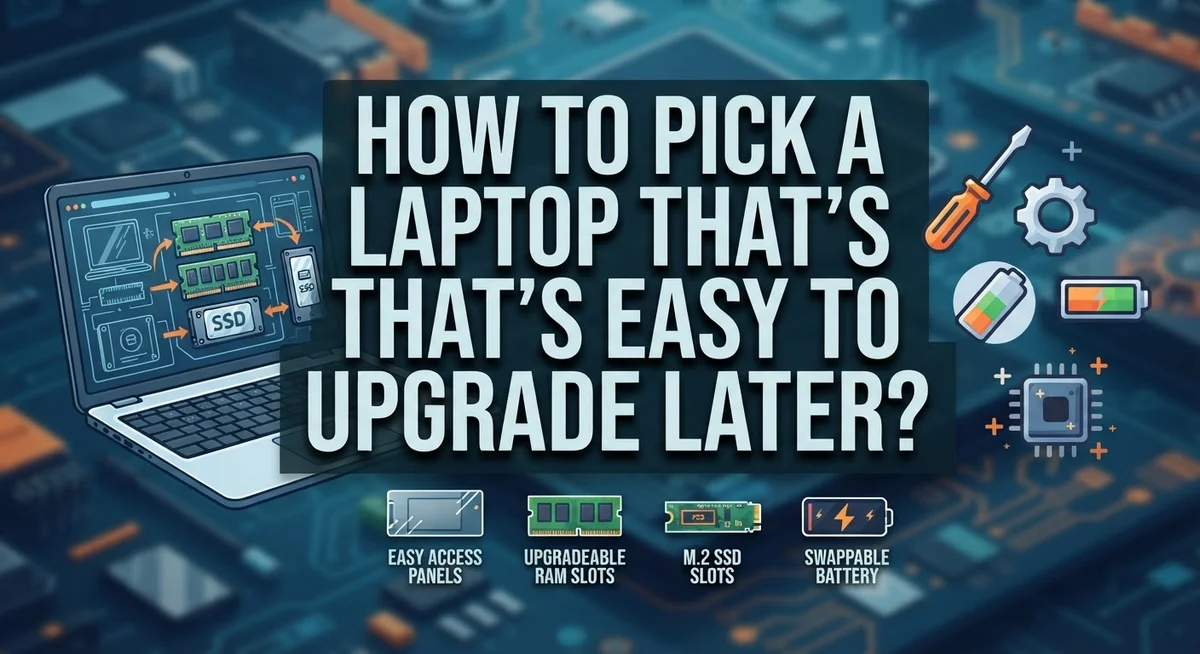
How to Pick a Laptop That’s Easy to Upgrade Later
Buying a new laptop feels exciting. But what happens two years later when it starts to feel slow?
This is where smart buying decisions matter. A laptop that’s easy to upgrade saves you money and stress down the road.
Most people focus only on price or looks. They forget to check what’s inside the machine. That’s a mistake you don’t want to make.
Upgradeability is the secret to a laptop that lasts. It means you can boost RAM, swap storage, or replace parts without buying a whole new device.
This article will show you exactly what to look for. We’ll cover processors, memory, storage, and build quality. You’ll also learn about ports and internal access.
By the end, you’ll know how to spot a future-proof laptop in minutes. No tech degree needed.
Whether you’re a student, gamer, or remote worker, this guide helps you choose wisely. You’ll avoid common traps that leave buyers stuck with outdated machines.
Let’s break down every factor that makes a laptop truly upgradeable.
In a Nutshell
Here’s a quick summary to keep in mind before you buy:
-
Check the processor first. A strong CPU forms the base of your laptop. It affects how well future upgrades perform.
-
Look for 12GB RAM or more. This is the minimum for smooth multitasking today. Extra RAM slots mean you can boost power later.
-
Pick 512GB SSD storage or higher. More storage means fewer slowdowns. It also gives you room to grow.
-
Confirm the RAM and storage are upgradeable. Some laptops seal these parts shut. Always check if you can access and replace them yourself.
-
Inspect build quality closely. Test the keyboard and trackpad. A sturdy design lasts longer and survives future tinkering.
-
Verify port availability too. You’ll need ports for external drives, monitors, and accessories. Don’t ignore this small but important detail.
-
Avoid buying on price alone. Cheap laptops often skip upgrade options completely. Spending a bit more now saves money later.
Keep these points handy. They’ll help you quickly judge any laptop’s true upgrade potential.
Why Upgradeability Matters When Choosing a Laptop
Upgradeability matters because technology changes fast. Your laptop needs to grow with your needs instead of becoming obsolete in two years.
When you pick an upgradeable laptop, you avoid throwing money away. A machine that lets you add more RAM or swap the storage drive costs less over time than replacing the entire device. You’re investing in longevity, not just today’s specs.
Performance demands increase constantly. What feels fast now might struggle with new software in 18 months. An upgradeable laptop lets you boost RAM or storage when you need it, without buying a new machine.
Upgradeability also saves you from buyer’s remorse. Many people purchase laptops with “enough” memory, then realize six months later they need more. With an upgradeable model, you simply add what you need later.
The repair advantage matters too. If your storage drive fails, you can replace just that part instead of sending the entire laptop for service. This keeps you working while reducing downtime and repair costs.
Flexibility is the real benefit here. Your work style might change. You might start video editing, gaming, or running multiple programs simultaneously. An upgradeable laptop adapts to these new demands without forcing you to buy again.
Port availability connects to upgradeability as well. Extra ports let you attach external drives, monitors, and accessories that expand your laptop’s capabilities. This extends the machine’s usefulness for years.
Finally, upgradeability reflects build quality. Manufacturers who design laptops for upgrades typically use better materials and construction. These machines last longer overall, whether you upgrade components or not.
Evaluating the Processor as Your Foundation
Your processor is the heart of your laptop. It handles every task your machine performs, from opening files to running software. A strong CPU means your laptop stays responsive today and handles future demands tomorrow.
When evaluating processors, look at the generation and core count. Newer generations offer better efficiency and speed. More cores mean your laptop can handle multiple tasks at once without slowing down. A current generation processor with at least 4 cores is a solid foundation.
Speed matters too. Check the base clock speed and boost clock speed. Higher numbers mean faster performance. However, don’t obsess over raw speed alone. A processor from this year with moderate speed often beats an older model with higher numbers.
Consider your actual needs. Students and office workers need less processing power than video editors or gamers. Match the processor to what you’ll actually do. This prevents overspending on features you won’t use.
The processor affects upgradeability indirectly. A laptop built around a strong CPU usually has better overall construction. This means the manufacturer likely made other parts upgradeable too. Cheap processors often come in sealed, non-upgradeable designs.
Research the specific model before buying. Look up reviews that test real world performance. Check if the processor can handle software you plan to use in three to five years. This forward thinking saves you from buying a laptop that feels slow within months.
The processor sets expectations for everything else. A quality CPU suggests quality RAM slots and storage bays. It indicates the manufacturer invested in a solid design. Your foundation determines how well your entire upgrade journey goes.
Understanding RAM Requirements and Expansion Capability
RAM acts as your laptop’s short term memory. When you run multiple programs, RAM stores data your processor needs right now. More RAM means smoother multitasking without slowdowns.
Start by checking how much RAM your laptop ships with. Most models come with 4GB to 12GB. For today’s work, 12GB is the practical minimum. If a laptop arrives with less, upgrading becomes essential.
The key question is simple: can you actually upgrade it? Some laptops have RAM soldered directly to the motherboard. This means you’re stuck with whatever capacity you bought. Other models use removable RAM sticks called SODIMM modules. These pop out and swap easily.
Before purchasing, verify the maximum RAM capacity. Many laptops support 16GB, 32GB, or even 64GB total. Check the manufacturer’s specifications online. Look for terms like “user upgradeable” or “accessible memory slots.”
Storage expansion works similarly. Most laptops use SSDs that you can replace. Check if the SSD slot is accessible without disassembling the entire device. Some brands make this simple. Others require removing multiple components.
Count the available slots too. Laptops with two RAM slots offer more flexibility than single slot models. Two SSD slots let you add storage without removing the original drive.
Port availability connects to expansion capability as well. USB ports let you attach external drives temporarily. Thunderbolt ports offer faster data transfer for upgrades. HDMI connections support external monitors.
Review online teardown videos before buying. These show exactly how accessible the internals are. They reveal whether you need special tools or extensive disassembly. This research prevents frustration later when you actually want to upgrade your machine.
Assessing Storage Needs and SSD Upgrade Potential
Storage capacity determines how much data your laptop can hold. You need enough space for your operating system, applications, and files. Most experts recommend starting with at least 512GB of SSD storage. This gives you room to work without constant cleanup.
Check what type of storage your laptop uses. SSDs are standard now and much faster than older hard drives. Verify whether the SSD is removable or soldered to the motherboard. A removable SSD means you can upgrade to larger capacity later.
Find out the maximum storage your laptop supports. Some models accept drives up to 2TB or 4TB. Others have limits around 512GB or 1TB. Research your specific model’s technical specifications before buying.
Consider how you’ll use the laptop. Video editors and photographers need more storage than basic web browsers. Gamers also require substantial space for large game files. Your actual usage determines whether 512GB is enough or if you need 1TB from day one.
Look at the upgrade path available. Can you add a second SSD drive if your laptop has multiple slots? Some laptops have one drive slot, while others offer two or more. Multiple slots provide flexibility for future expansion.
Check if you can access the storage compartment yourself. Some laptops require professional disassembly to reach the SSD. Others have easy access panels you can open with a screwdriver. Easy access means cheaper upgrades down the road since you won’t need technician fees.
Prioritize models where you can actually swap out the storage. This single feature saves you money when your needs grow. You avoid being locked into whatever capacity you buy initially.
Checking Ports, WiFi Cards, and Build Quality
Ports matter more than most people realize when buying an upgradeable laptop. A machine with plenty of USB ports, HDMI outputs, and SD card readers gives you flexibility for connecting external devices without adapters. Check how many ports your laptop offers before you buy. Some slim models sacrifice ports for thinness, which limits your options later.
WiFi cards deserve your attention too. Some laptops let you upgrade the WiFi card to a newer standard, while others have it permanently attached. If you plan to keep your laptop for several years, this matters. Newer WiFi standards offer better speeds and reliability. Ask the manufacturer or check the manual to see if the WiFi card is replaceable.
Build quality directly impacts upgradeability. Open the laptop’s bottom panel if possible to inspect the internal layout. Look for easy access panels that let you reach the RAM and storage without disassembling half the machine. Laptops with tool free access panels are your best bet. Metal chassis generally hold up better than plastic when you’re opening them repeatedly for upgrades.
Check the keyboard and trackpad quality while you’re examining the build. These components wear out over time, and a solid construction means they’ll last longer. Press the keys firmly and test the trackpad responsiveness.
Pay attention to how the laptop feels in your hands. Weight matters if you move it around frequently. A heavier machine might mean thicker metal, which suggests better durability. Light machines sometimes feel flimsy, though modern engineering has improved this significantly.
Take time to physically handle the laptop before purchasing. This reveals far more than any online review can tell you about real world upgradeability and build quality.
Step-by-Step Guide to Testing a Laptop’s Upgrade Access
Testing a laptop’s upgrade access requires hands on inspection before you buy. Start by checking the manufacturer’s documentation. Most companies publish service manuals online that show which components are user accessible.
Look for a removable bottom panel or access door. Many upgradeable laptops have a clearly marked compartment on the underside. This panel should open with basic tools like a screwdriver. If the entire bottom is sealed with adhesive or rivets, upgrades become difficult or impossible.
Examine the RAM slots directly if possible. Ask the retailer if you can view the internals or watch a video demonstration. Count how many RAM slots exist and check if any slots are already occupied. A laptop with two empty slots offers better upgrade potential than one with a single slot fully populated.
Inspect the storage area next. Locate where the SSD sits inside the device. Confirm it uses standard M.2 or 2.5 inch formats rather than proprietary designs. Proprietary storage requires buying expensive replacements from the manufacturer.
Check the WiFi card location too. Standard WiFi cards use removable modules. Soldered or integrated WiFi cards mean you cannot upgrade wireless capability later.
Test the keyboard and trackpad during your inspection. Press several keys and move the trackpad around. Poor build quality often indicates glued or sealed internals. Laptops built with screws and modular components typically have better overall construction.
Ask the seller direct questions. Request confirmation that RAM is upgradeable and storage is replaceable. Get answers in writing when possible. This documentation protects you if problems arise after purchase.
Common Mistakes to Avoid When Assessing Upgradeability
Many people make critical errors when checking if a laptop can be upgraded later. These mistakes cost them money and frustration down the road.
Ignoring the processor quality is the biggest mistake. Your CPU forms the foundation of everything else. A weak processor cannot be upgraded, so you’re stuck with it for years. Always verify the processor generation and performance tier before anything else matters.
Assuming all RAM is expandable leads to regret. Some laptops solder RAM directly to the motherboard. This means you cannot add more memory later, no matter how much you want to. Always confirm the specific model allows RAM upgrades before purchasing.
Selecting insufficient initial memory is another common error. Buying a laptop with only 4GB RAM and hoping to upgrade later is risky. Some models max out at low capacities. Start with 12GB minimum to give yourself real upgrade potential.
Overlooking port availability happens frequently. Ports determine what peripherals you can connect in the future. A laptop with only two USB ports limits your options significantly. Count the ports carefully during your assessment.
Skipping the storage check is equally problematic. Not all laptops use standard SSDs that you can replace yourself. Some use proprietary storage that costs far more to upgrade. Verify the storage type and maximum capacity before buying.
Neglecting build quality inspection matters more than people think. A poorly constructed laptop may have components you cannot access safely. The keyboard and trackpad reveal how seriously the manufacturer built the device.
Finally, many buyers prioritize price over upgradeability. A cheap laptop that cannot be upgraded costs more over time than a slightly expensive model with full upgrade capability. Think long term, not just at purchase time.
Balancing Performance, Mobility, and Future Expansion
Your laptop choice involves three competing demands: speed, portability, and room to grow. You need to balance these factors carefully.
Performance forms your foundation. A strong processor handles today’s tasks and tomorrow’s software updates. Invest in a quality CPU because you cannot upgrade it later. This is your most important locked in choice.
Mobility shapes your daily experience. A lighter laptop travels easier. A smaller screen fits in tight spaces. Yet ultraportable models often sacrifice upgradeability. Thinner designs mean soldered components and limited access. Consider how often you move your laptop. If you work from one desk, you can choose a slightly bulkier model with better upgrade options.
Future expansion requires accessible parts. RAM and storage upgrades extend your laptop’s useful life. Look for models where you can reach these components without special tools. Check if the bottom panel comes off easily. Verify that RAM slots remain empty after purchase. Confirm the storage drive is replaceable, not glued down.
Port availability matters more than you think. Extra USB ports, HDMI outputs, and SD card readers let you connect peripherals without adapters. This flexibility reduces the pressure to upgrade your entire laptop. You can add external storage, better speakers, or additional monitors through ports.
The sweet spot exists when you choose a laptop with good processing power, acceptable weight for your lifestyle, and genuine upgrade pathways. You do not need the thinnest or lightest model. You do need one where manufacturers left room for growth. Test the laptop in person. Open the access panels. Feel the build quality. This hands on approach reveals whether your choice truly supports future upgrades.
Final Thoughts
Picking an upgradeable laptop takes some planning. But the effort pays off later.
You save money when you upgrade instead of replacing your whole laptop. You also save time on research and setup.
Start with the processor. A solid chip supports your laptop for many years. Skimping here creates problems no upgrade can fix.
Check RAM next. Choose 12GB or more as your starting point. Confirm the laptop allows RAM expansion too.
Storage matters just as much. Look for 512GB or higher SSD capacity. Verify you can add more storage later if needed.
Physical access counts too. Laptops with removable panels let you reach internal parts easily. This access makes future upgrades simple instead of stressful.
Don’t forget ports. Extra USB slots and card readers add flexibility. They let you connect new devices as your needs change.
Build quality deserves attention as well. A sturdy laptop handles the wear of opening panels and swapping parts. Cheap materials crack or break during upgrades.
Balance all these factors together. Performance, mobility, and expansion room work as a team. Focus on one factor alone and you risk regret later.
Take your time during the buying process. Ask questions and inspect the internals whenever possible. This small step prevents big headaches down the road.
Remember that upgradeability protects your investment. It stretches your laptop’s useful life by years. You get more value from every dollar spent.
Your final choice should match your daily needs and future goals. A little research now saves frustration and expense later. Choose wisely and your laptop will serve you well for a long time.
Frequently Asked Questions
Can I upgrade RAM in most laptops?
Not all laptops allow RAM upgrades. Some models have soldered memory, which means the RAM is permanently attached to the motherboard. Before buying, check the laptop’s specifications to see if RAM slots are user accessible. Look for phrases like “upgradeable RAM” or “SODIMM slots” in the product documentation. This information usually appears in the technical specs section.
What’s the minimum RAM I should start with?
Aim for at least 12GB of RAM when you purchase your laptop. This gives you room to work comfortably today without maxing out your system. If you find a model with 8GB, verify that you can add more later. Starting with 12GB means you won’t feel the need to upgrade immediately, which saves you money upfront.
How do I check if the storage is upgradeable?
Most modern laptops use SSDs (solid state drives) that you can replace. Open the laptop’s manual or search the model number plus “upgrade SSD” online. Look for information about the storage bay. Some laptops have the SSD easy to access, while others require removing multiple components. Choose models where storage upgrades are straightforward and don’t require professional help.
Why do ports matter for future upgrades?
Ports let you connect external devices without opening your laptop. USB ports, HDMI outputs, and SD card readers expand what your laptop can do. More ports mean you can add external storage, displays, or peripherals as your needs change. Check how many ports the model includes before you buy.
Should I sacrifice performance for upgradeability?
No. Pick a laptop with a solid processor first, then verify it’s upgradeable. A weak processor limits what your laptop can do, even with future upgrades. Balance both factors. A good CPU with accessible RAM and storage slots gives you the best long term value.

DK is a tech enthusiast and product reviewer dedicated to helping readers navigate the ever-evolving world of technology. With a passion for testing and comparing the latest gadgets, software, and AI tools, DK breaks down complex tech into simple, actionable insights for everyday users.